The forgotten laptop feature that can add an extra hour of battery life on trains
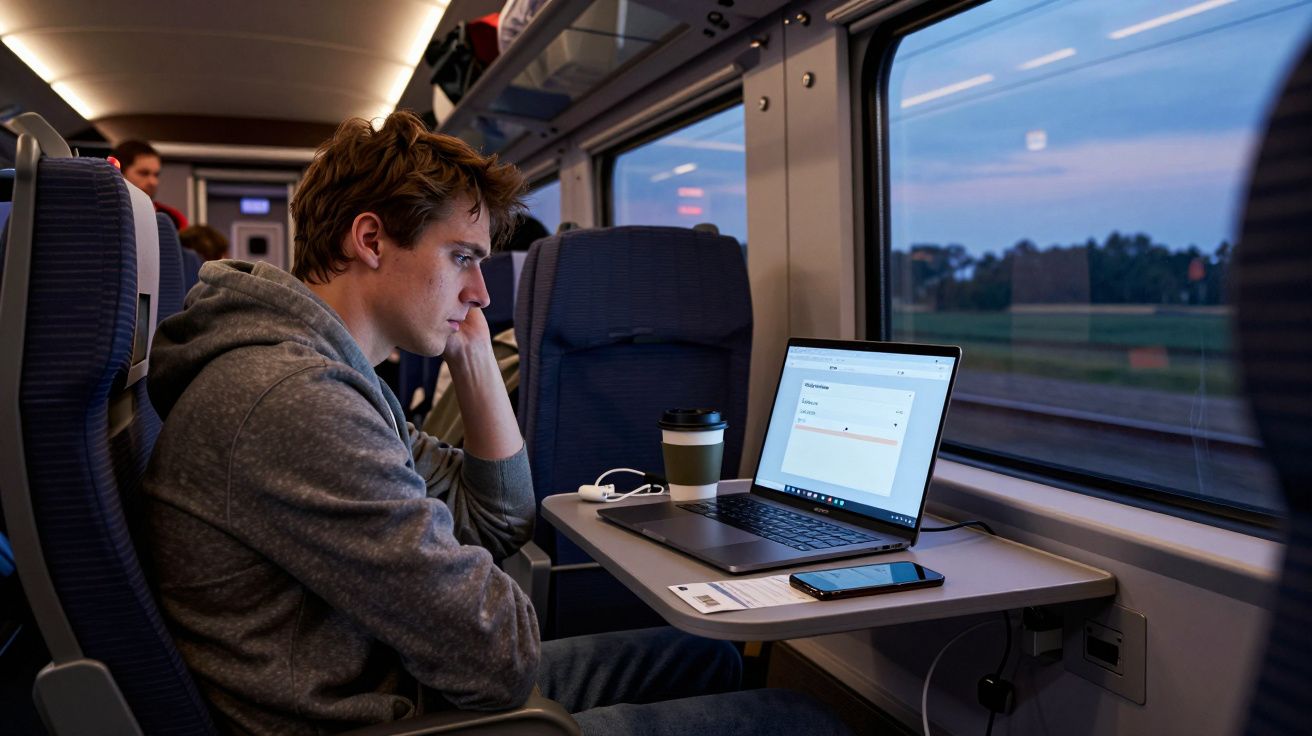
The carriage lights dim, the countryside turns into a blur of hedges and signal posts, and the battery icon begins its slow, taunting fade from green to amber. You turn the screen down a notch, close a few tabs, and eye the power socket under the seat that either does not exist or does not work. Somewhere between Birmingham and Bristol, a quiet setting you never touch could have bought you another hour.
Most travellers reach for the same fixes: “battery saver” mode, dimmer screen, maybe a quick app purge. Yet buried in the settings menu is a feature designed for exactly this scenario, and it does not involve a power bank or a different laptop. It is the screen’s refresh rate.
The work your screen is doing for no good reason
Modern laptops, especially slimmer models, often ship with high refresh rate displays. The screen redraws itself 120 times a second, sometimes more, to make scrolling and gaming look smoother. It is lovely on fast video, less critical for a spreadsheet at seat 42A.
Every extra redraw costs energy. The graphics chip works harder, the panel’s electronics switch more often, and the battery drains a little faster. Doubling the refresh rate does not exactly halve your battery life, but it nudges the odds in the wrong direction, especially when you are away from the socket.
On a train, most of us are reading, editing, or writing. The page barely moves. A 60 Hz screen refresh looks much the same as 120 Hz for static content. The pixels are working flat out for motion that never comes.
Dropping from 120 Hz to 60 Hz can claw back around 30–60 minutes of battery life on a long journey, depending on your machine and what you are doing.
The simple change that can buy you time
The hidden lever is a manual refresh-rate switch. Windows, macOS and many Linux distributions now let you choose how fast your display updates. On some laptops, you can even pin a toggle to a quick menu, next to Wi‑Fi and Bluetooth. The trick is not to leave the screen in “sport mode” when you do not need it.
Imagine this routine. You board, find your seat, stow your bag, and flip open the laptop. Before you launch your documents, you drop the display from 120 Hz down to 60 Hz. Ten seconds of set‑up, one extra episode of downloaded television later in the trip.
On a few models, the setting is called something less obvious, like “Optimised” versus “Smooth” or “Battery saver display”. Underneath, the change is the same: fewer redraws, less waste.
How to switch refresh rate on common systems
The exact path varies, but the logic repeats. Find the display settings, look for “Advanced” or “More”, and then pick a lower number.
- Windows 11 / 10
- Settings → System → Display → Advanced display.
- Under “Choose a refresh rate”, select 60 Hz (or the lowest option above 48–50 Hz).
- macOS (MacBook Pro / Air with ProMotion)
- System Settings → Displays → click the “Refresh Rate” drop‑down.
- Choose 60 Hz instead of “ProMotion” or a higher fixed rate.
- Many Linux desktops (GNOME, KDE)
- Settings → Displays.
- Find “Refresh rate” and choose 60 Hz.
If you cannot see a refresh option, your screen may already be locked to a single rate. In that case, you have nothing to tweak, and can safely move on to other savings.
Why trains are the perfect place to use it
Laptops behave differently on the move. Poor mobile signal makes background apps work harder. Bluetooth headphones add a small, steady drain. The climate control swings between chilly and warm, nudging the battery’s chemistry. Train Wi‑Fi, when it appears, tempts you into streaming that uses more power than a downloaded file.
The display remains the biggest single draw in this mix. Unlike fans or occasional processor spikes, it pulls energy continuously as long as it is on. Cutting its workload, even modestly, has an outsized effect over a two‑hour journey.
On a desk, you might crave ultra‑smooth scrolling and silky animations. On a train, you mostly need the laptop not to die before you reach your stop. The context silently changes the best setting, but the laptop will not change it for you unless you ask.
Think of 60 Hz as your “railway mode”: less glamour, more miles.
Combine it with small, low‑effort tweaks
The refresh‑rate change does the heavy lifting, but a few quiet adjustments stack neatly on top. None of them requires you to baby the battery or sit in the dark.
- Drop screen brightness by one or two steps, not to minimum.
- Turn off keyboard backlighting in daylight.
- Close any app constantly syncing large files over patchy train Wi‑Fi.
- Pause cloud backups until you are on solid broadband again.
- Use headphones instead of blasting sound through laptop speakers.
You do not need an all‑day ritual. A 30‑second “train profile” before you start working is enough: refresh rate down, brightness nudged, sync paused, headphones on. Do it once and you will feel the extra 10–20 per cent of charge at the other end.
Quick comparison: same laptop, different habits
| Setting change | Typical gain on a 3h trip | Effort level |
|---|---|---|
| Drop 120 → 60 Hz | ~30–60 minutes | One‑off tap |
| Brightness: 80% → 50% | ~20–40 minutes | Small tweak |
| Pause heavy cloud sync | ~10–20 minutes | App setting |
Figures vary, but the pattern holds: the display lever is one of the easiest, highest‑impact moves you can make en route.
When to switch back – and when to leave it alone
After the train, you might go straight into a meeting, plug into mains, or keep working from a café. If you edit video, game, or simply enjoy the silkiness of a high‑refresh screen, flick the setting back when you are plugged in. The menu path is the same in reverse, and you can treat it like toggling Wi‑Fi on a flight.
Some people discover they do not notice the difference at all outside fast games and keep their laptop at 60 Hz permanently. Battery life goes up quietly; fan noise goes down. Others prefer a “fast at home, frugal on the go” split and make refresh rate part of their travel checklist.
There are limits. If your battery is already old and tired, the gains will be smaller. If your work involves constant video calls or 4K playback, the graphics chip will still work hard. The refresh tweak is not magic, but it is solid, reproducible chemistry and physics wrapped in a single menu.
A small habit that changes how long your laptop feels “safe”
Watching your battery sink with three stops still to go can make even a modern machine feel fragile. Part of that anxiety is not knowing where the power is going or what you can still influence now that you are rolling through the countryside.
That forgotten setting turns the problem into a choice again. You trade a level of visual smoothness you hardly notice on a packed 09:23 for another chapter, another email, another saved draft. The laptop becomes less of a timer and more of a tool.
Over time, that ten‑second habit becomes as automatic as pulling out your ticket. Open lid. Drop refresh. Get on with your day. The feature was there all along; it just needed a journey long enough to matter.



Comments (0)
No comments yet. Be the first to comment!
Leave a Comment