Why your Wi‑Fi slows down at 7pm – and the one router setting broadband engineers change first
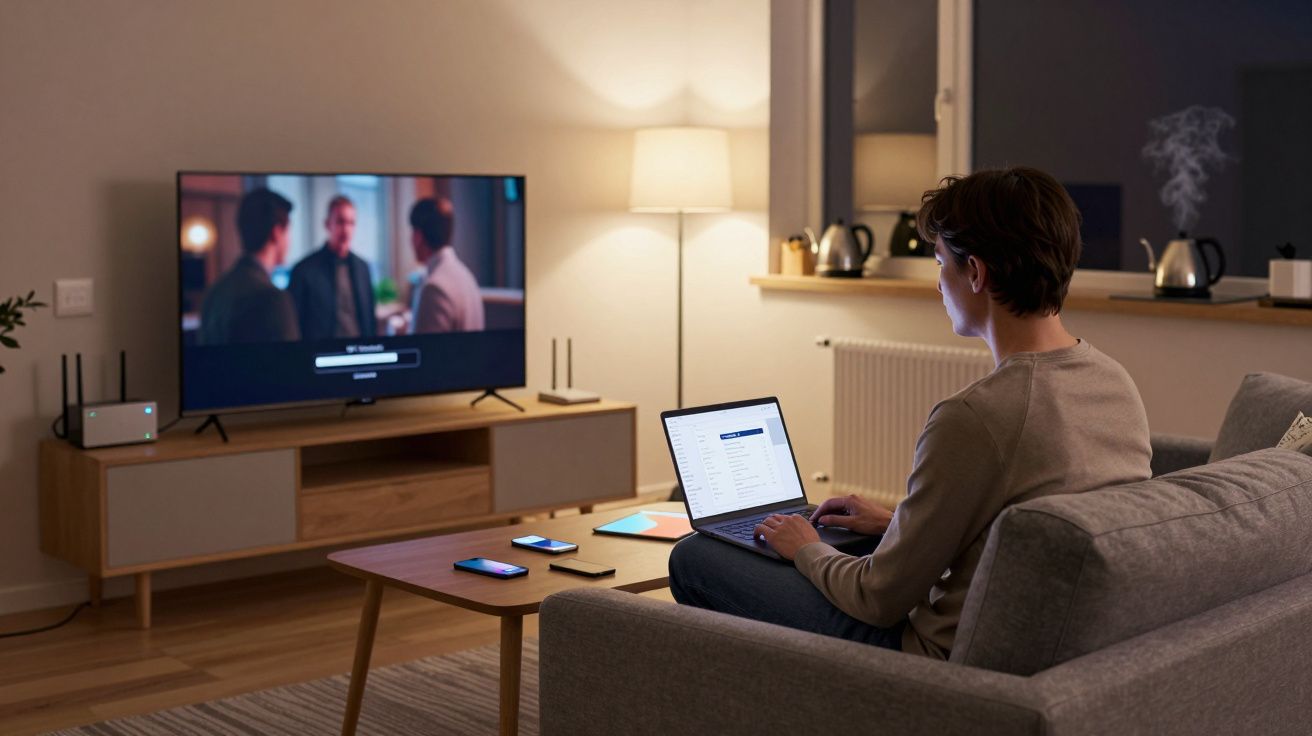
At 7pm, your home changes gear. Kettle on, TV streaming, someone upstairs launches a game update the size of a small moon, and a laptop in the corner tries to join a video call that freezes on the worst possible frame. The bars on your phone still look full. The reality on screen does not.
You reboot the router. The lights blink, the connection returns, and for a while things feel fine. Then Netflix judders again and the meeting audio falls apart, just as someone says “you’re breaking up”. It feels random. It isn’t.
There is a pattern hidden behind that slowdown, and there is one setting inside your router that broadband engineers quietly reach for before almost anything else.
The 7pm problem: when your Wi‑Fi meets everyone else’s
Even if your broadband speed test looks heroic on paper, the bit that actually touches your devices is your Wi‑Fi, and Wi‑Fi is a shared conversation. It is not just you talking; it is your devices, your neighbour’s devices, and the flat over the road, all trying to shout on the same few radio channels.
In the early evening, that conversation gets loud. More people at home, more smart TVs and consoles awake, more phones on the sofa than in a pocket. Your router is still delivering the internet it can get from the street, but the air inside your home gets crowded. This is where capacity, interference and one unlucky factory default collide.
Most consumer routers leave the box with their wireless channel set to “Auto”. It sounds clever. Often it isn’t. Auto can lock your Wi‑Fi onto a busy or overlapping channel and then stubbornly stay there while the neighbourhood fills up. From the engineer’s point of view, the fastest win is simple: take control of the channel.
The setting engineers change: fixing your Wi‑Fi channel like a traffic lane
Think of Wi‑Fi channels like motorway lanes painted onto the same strip of tarmac. On 2.4GHz, there are thirteen numbers on the sign in the UK, but only three non‑overlapping lanes that do not slice through each other: 1, 6 and 11. Many cheap routers still sit in the middle of a muddle, spreading across several lanes and fighting with the neighbours doing the same.
An engineer visiting your home will often log into the router, glance at what channel you are on, then look at what the nearby networks are doing. If your router is sat on channel 3 with five neighbours half‑overlapping it, they will move you cleanly onto 1, 6 or 11, whichever looks quietest at that moment. It takes seconds. The difference, especially at peak time, can feel like someone has opened a window in a stuffy room.
On 5GHz, there are more lanes and less mess, but a similar principle applies. Some routers cling to the lower channels that every other box on the street is also using. Sliding to a less crowded block can smooth out those evening dips. The setting has a plain name in your Wi‑Fi menu: Channel. No wizardry, just a decision your router was making badly on your behalf.
How to change it yourself without breaking anything
Before you dive into menus, it helps to know what you are actually connected to. Your phones and laptops usually show both the network name (SSID) and whether you are on 2.4GHz or 5GHz. If everything is piled onto 2.4GHz, that is where a channel tweak pays off first.
The practical route looks like this:
- Log into your router’s admin page (the address and password are usually on a label underneath).
- Find the Wireless or Wi‑Fi section, then look for Channel.
- Note down the current channel in case you want to go back.
- For 2.4GHz, pick 1, 6 or 11. For 5GHz, pick a different channel number from your current one, staying within the “non‑DFS” options if your router labels them.
- Save and let the router reboot if it wants to.
To avoid playing guess‑the‑number, you can install a Wi‑Fi analyser app on your phone. Stand in the room where you actually use the Wi‑Fi, and see which channels are rammed. Pick one of 1, 6 or 11 with the fewest tall bars from other networks. It does not have to be empty. “Less bad” is often enough.
If nothing improves, you can always flip the channel back, or try a different one. You are not touching your broadband line, just the last wireless hop inside your home.
Other quiet culprits: walls, boxes and bandwidth hogs
Channel choice is the quick fix. It is not a magic trick. Some slowdowns are brutally simple: a thick wall, a router stuffed under the TV, or a single device greedily eating your entire evening.
Concrete, foil‑backed insulation and even a big fridge can chew through signal strength. A router hidden behind a TV or wedged in a cupboard can work in the morning then struggle when more people come home and move around it. Engineers will often just lift the router onto a shelf or pull it clear of a stack of boxes, then see speeds jump.
Then there are the heavy users. A cloud backup kicking in at 7pm, a console downloading a 90GB update, or a laptop syncing photos can saturate the line without shouting about it. Your video call feels broken, but your broadband is actually doing exactly what it was told: prioritising raw download. If your router has a “Quality of Service” or “Device priority” setting, nudging work laptops or calls to the top of the list can stop them being elbowed aside by a game patch.
“Peak‑time slowdowns are often local,” one network engineer told me. “The line is fine. It’s the last ten metres of air and the way a single device is allowed to hog it.”
- Move the router into the open, away from TVs and thick walls.
- Use 5GHz where you can for faster, shorter‑range connections.
- Schedule big downloads or backups for late at night.
- Give work devices priority if your router offers it.
A small change, a different kind of evening
The night you change the channel will not feel dramatic. There is no new box on the wall, no flashing “turbo” light. But the next time everyone piles online at once, you might notice the absence of drama: the film plays through, the call stays smooth, the game does not lag at every crucial moment.
Your broadband contract has not changed. The numbers on the bill have not moved. What has shifted is the way your home uses the air it already has, stepping out of the noisiest part of the room and into a clearer corner. It is not a revolution. It is closer to good housekeeping.
Sometimes, that is all your 7pm Wi‑Fi really needed.
| Key point | Detail | Why it matters |
|---|---|---|
| Wi‑Fi crowding at peak time | Neighbours and devices fight over the same channels | Explains why evenings are worse than mornings |
| Manual channel choice | Move 2.4GHz to 1, 6 or 11; pick quieter 5GHz channels | Fast, reversible tweak that engineers use first |
| Environment and usage | Router placement and big downloads matter too | Targets fixes you can control inside the home |
FAQ:
- Why does my speed test look fine but streaming still buffers? Speed tests usually run for a short burst and can mask brief spikes of congestion or wireless interference. Streaming and calls expose those wobbles over time, especially in busy evening periods.
- Should I just buy a new router? Not always. Tweaking the channel, moving the router, and separating 2.4GHz/5GHz networks often delivers big gains on existing hardware. Upgrade when you’ve tried the free fixes first.
- Is 2.4GHz bad and 5GHz good? 2.4GHz travels further and through walls better but is more crowded and slower. 5GHz is faster and usually cleaner but has shorter range. Using both smartly is better than abandoning one.
- Can my provider change the channel for me? Some ISP routers are remotely managed and can be tuned by support, but many will still talk you through doing it yourself. It takes a couple of minutes once you’re in the admin page.
- What if changing channels makes things worse? You can safely switch back to the original channel or try another option. You’re only adjusting the wireless lane inside your home, not the broadband line itself.


Comments (0)
No comments yet. Be the first to comment!
Leave a Comment